Adding a Sticky Note on the Workbench
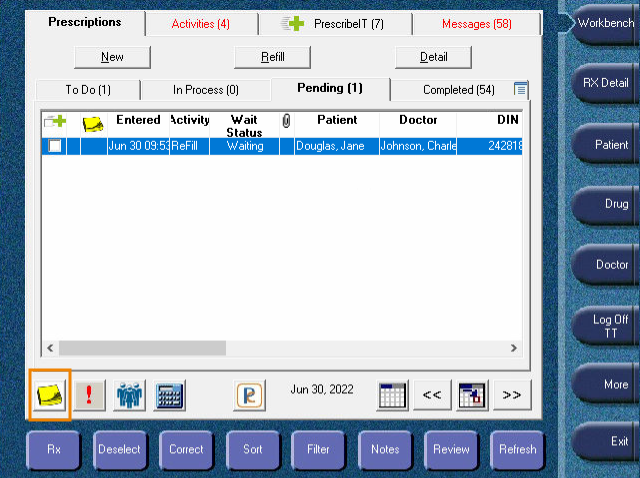
Sticky notes can be added and viewed in the To Do, In Process, or Pending tabs of the Prescriptions Workbench.
To add a sticky note to a prescription on the Workbench:
-
On the Prescriptions Workbench, highlight a prescription in the To Do, In Process, or Pending tabs.
Prescriptions in the To Do tab with a paper icon in the Attachments column cannot be highlighted. Prescriptions that are open in Rx Detail cannot be highlighted in the In Process tab.
-
Select the Sticky Notes button. The Sticky Note window opens.
-
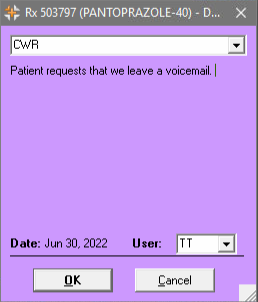
From the dropdown, select the type of note. The colour of the note changes depending on your selection.
You can customize the Sticky Type in List Maintenance. For more information, see Adding a List Item to the Sticky Notes List.
-
Enter information in the note if needed.
-
Select OK. The sticky note appears next to the prescription on the Workbench. It remains attached to the prescription until it is completed. To view the sticky note, select the Sticky Notes button and Open Sticky.
If you cannot see the sticky note, scroll to the right. If you still cannot see the sticky note, try resetting your Workbench Prescriptions grid. For more information, see Removing Customized Grids.